First steps
Write your first equation in NeoMath, switch between Visual, LaTeX and MathML modes, save, export and send it to Word.
This guide takes five minutes and shows the most common path: write an equation, save a file that reopens for editing and take the equation into a document.
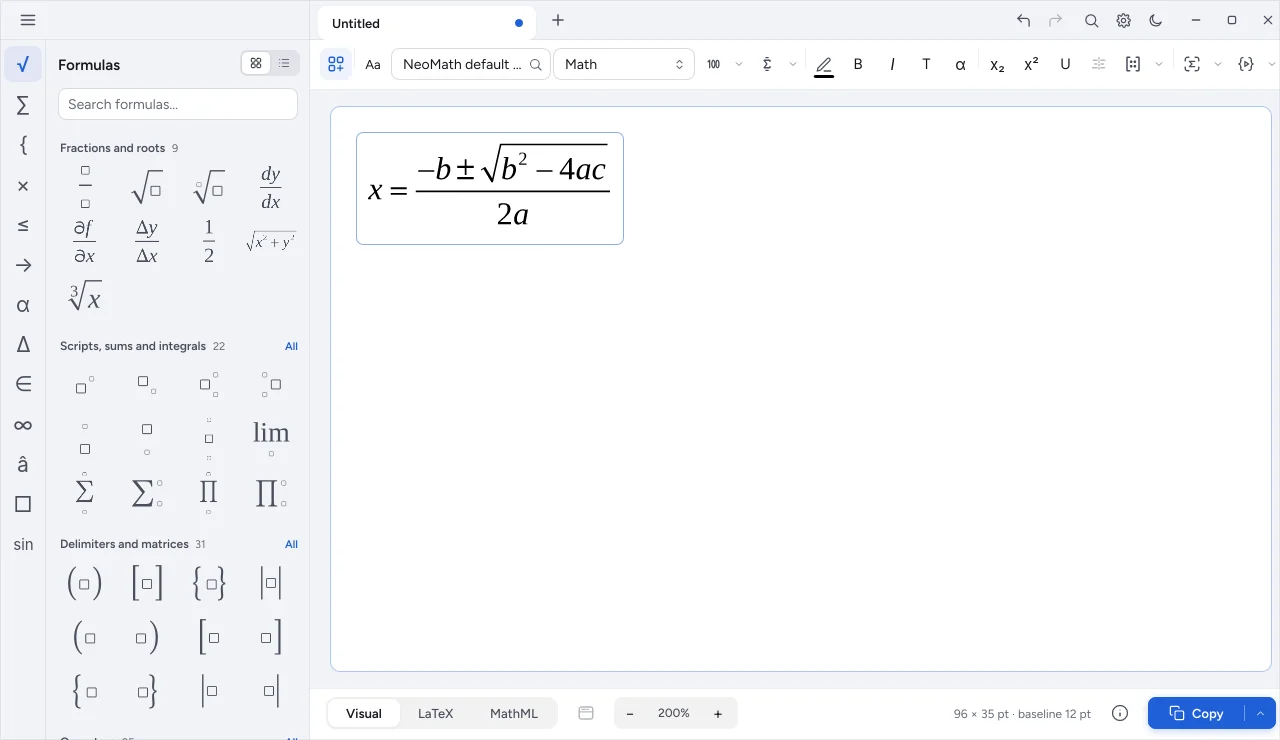
Write the equation#
- Open NeoMath. An Untitled tab is ready to type.
- Type
x=and use Ctrl+F to insert a fraction. The cursor goes to the numerator. - Write the numerator, move forward with the right arrow and write the denominator.
- Use Ctrl+R for a root, Ctrl+H for a superscript and Ctrl+L for a subscript.
- Look up any symbol or template in the Search formulas… field of the palette.
The editor classifies what you type by itself: numbers, letters (in italics) and operators. The hyphen becomes a minus sign and the asterisk becomes a multiplication dot. The full rules are in Typing and styles.
Visual, LaTeX and MathML modes#
At the bottom, the Visual · LaTeX · MathML selector changes how you edit the same equation. You can paste LaTeX such as x=\frac{-b\pm\sqrt{b^2-4ac}}{2a} in LaTeX mode and go back to Visual to continue with the mouse and keyboard.
Save#
Click Save (Ctrl+S) and choose the format. The EPS, SVG, PNG, PDF and the other NeoMath image formats can be opened again in NeoMath to keep editing, with the same fonts and sizes.
Send to Word#
On Windows, with Word open:
- Ctrl+Enter sends the equation to the Word cursor as a native equation;
- Ctrl+Shift+Enter updates the selected equation in Word;
- Ctrl+Shift+W brings the equation selected in Word into NeoMath.
Word also gets a NeoMath tab, with New equation, Edit equation, numbering and conversions. See Microsoft Word.