NeoMath
Overview of Neo's equation editor, with the interface, tabs, editing modes, palette, equation style, color and settings.
On this page
NeoMath is Neo’s equation editor. It has its own technology: it reads MathML and LaTeX and produces EPS and images for the web and Word at publishing quality, without relying on any other installed program.
The window#
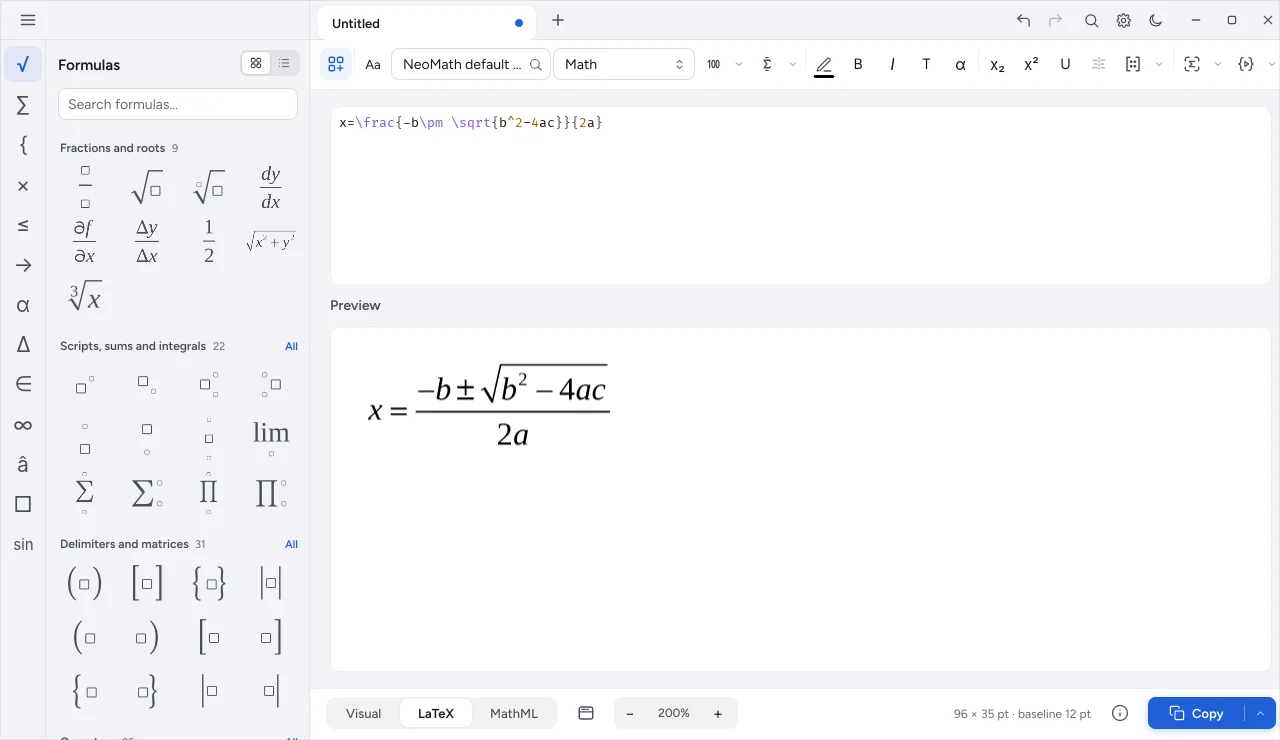
| Area | What it has |
|---|---|
| Side menu (☰) | File, Edit, Matrix, Help, NeoScript, Conversions, Settings |
| Palette | fractions and roots, indices, sums and integrals, delimiters and matrices, operators, relations, arrows, lowercase and uppercase Greek letters, sets and logic, miscellaneous symbols, with search by name |
| Toolbar | undo and redo, paste, style preference, typing style, color, bold, italic, text, Greek, subscript, superscript, underline, matrix, OCR and NeoScript |
| Tabs | one equation per tab; the ● dot marks unsaved changes |
| Footer | mode (Visual, LaTeX or MathML), zoom and the Save button |
Editing modes#
- Visual: the structured editor, with the cursor inside fractions, roots, indices and matrices. The typing rules are in Typing and styles.
- LaTeX: edit the code directly. NeoMath understands everyday LaTeX and the packages most used in exams and books; see Supported LaTeX commands.
- MathML: for people who receive MathML from other systems or need fine attributes such as
mathvariantandneo:tamanho(MathML and extensions).
Switching modes is lossless: the same equation appears in all three.
Typing styles#
Each typed character gets a role: Math (automatic), Text, Function, Variable, Greek and Vector-Matrix. With a selection, the style shortcut applies the style to the selected part.
| Style | Shortcut |
|---|---|
| Text | Ctrl+Shift+E |
| Math | Ctrl+Shift+= |
| Function | Ctrl+Shift+F |
| Variable | Ctrl+Shift+I |
| Greek | Ctrl+Shift+G |
| Vector-Matrix | Ctrl+Shift+B |
Ctrl+G turns only the next letter into Greek (a becomes α, p becomes π).
Equation preferences#
The fonts, sizes and spacing of each equation come from a style, stored in a preferences file. The toolbar selector shows the current style (for example NeoMath default). Under Equation preferences you change:
- the font, bold and italic of each of the 11 styles (text, function, variable, lowercase and uppercase Greek, symbol, vector, number, user 1 and 2, math extra), with any installed font;
- the sizes (full, script, subscript, symbol, subsymbol, user 1 and 2);
- the 30 spacings (line spacing, matrix, fractions, roots, limits and others).
Color#
The color button has the 15-color palette, Custom colors and More colors… (saturation and brightness square, hue, hexadecimal and RGB). For publishing use, the RGB | CMYK switch lets you type the four inks; the EPS carries exact CMYK. Details in Color in RGB and CMYK.
Matrices#
Insert a matrix from the palette or the matrix button and edit with the cursor inside it:
- Ctrl+DB and Ctrl+DC add a row below and above; Ctrl+DX removes the row;
- Ctrl+DD and Ctrl+DE add a column to the right and to the left; Ctrl+DZ removes the column;
- Ctrl+D1 to Ctrl+D5 change the delimiter (parentheses, brackets, braces, bars, left brace) and Ctrl+D0 removes it.
Paste from other programs#
Ctrl+V recognizes equations pasted from Word and images generated by NeoMath. The equation opens in a tab to edit. The Unicode math letters Word uses (such as 𝜕) become ordinary characters.
Settings#
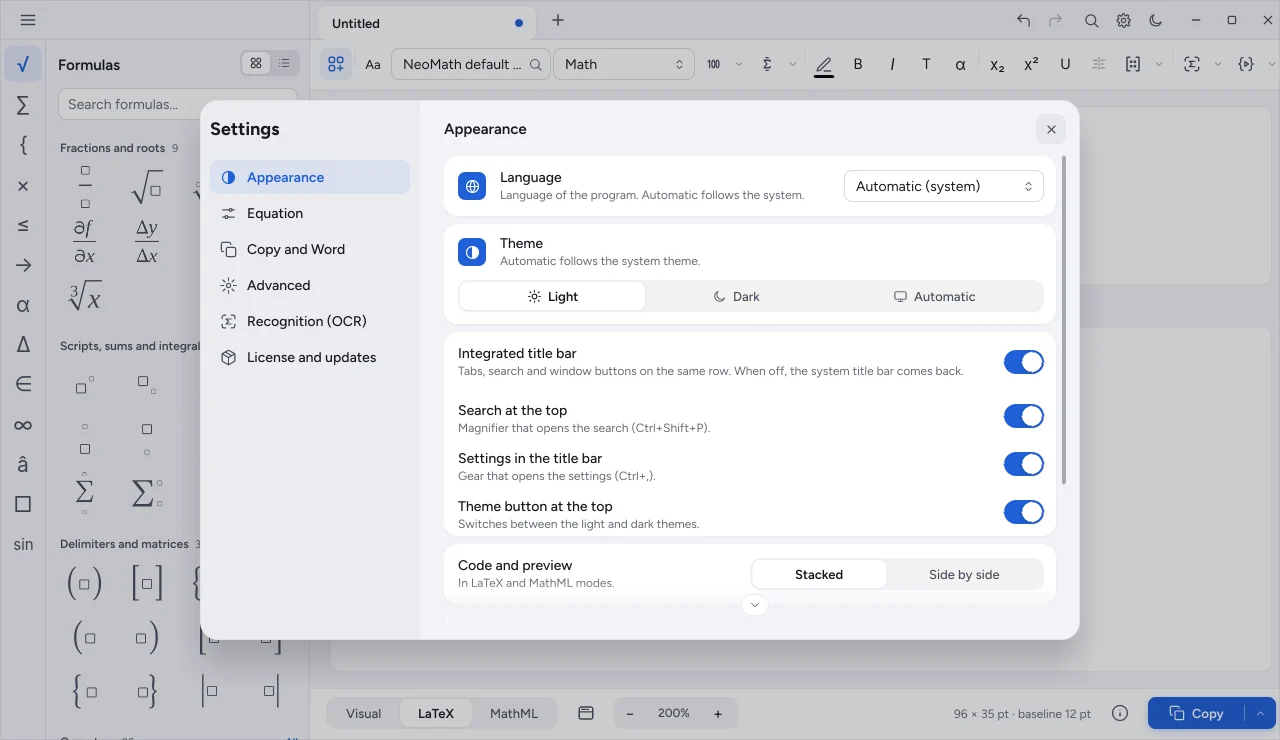
- Appearance: language (automatic, Portuguese, English or Spanish) and theme.
- Equation: default format, apply color to everything and other editing preferences.
- Recognition: OCR provider (NeoCR).
- Updates: license key.
- Advanced: file association and the local API.